
Plugins
Custom plugins can be added to Kiln to add additional functionality. Plugins live inside the website instance running Clay, within the services/kiln/plugins folder. Each plugin should live inside its own folder within the plugins folder. (i.e. services/kiln/plugins/my-plugin) The services/kiln/index.js file should require the plugin.
require('./my-plugin')();
The services/kiln/plugins/my-plugin/index.js, which will be required by the above statement, should be an exported function that includes all the components needed by the plugin. It should add the components to the global window.kiln object.
Plugin Buttons
module.exports = () => {
  window.kiln.navButtons['myPlugin'] = require('./nav-button.vue');
  window.kiln.navContent['myPlugin'] = require('./main.vue');
};
Any buttons added to the window.kiln.navButtons array will appear in Kiln's navigation drawer. Any components added to the window.kiln.navContent array will be available to show as content within the navigation drawer. To display the nav-button.vue can be as simple as this.
<template>
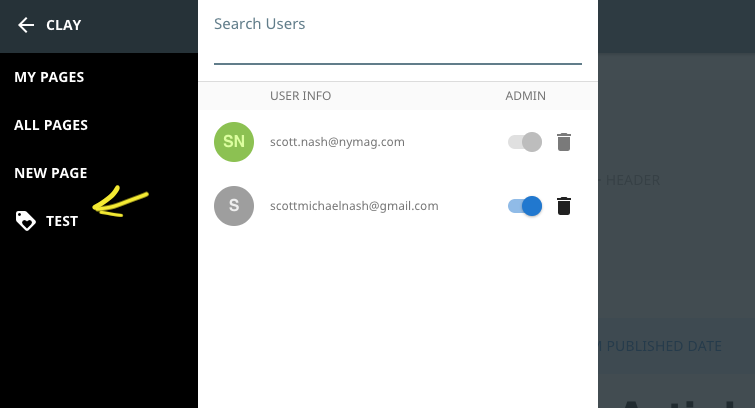
  <nav-menu-button id="test" icon="loyalty" @nav-click="openNav">Test</nav-menu-button>
</template>
 <script>
'use strict';

// import the navMenuButton component from the global kiln object
const navMenuButton = window.kiln.utils.components.navMenuButton;

module.exports = {
  methods: {
    openNav() {
      // when the nav-menu-button is clicked, we toggle the drawer open or closed to show or hide the navContent component we set in the index.js file named 'myPlugin'
      this.$store.dispatch('toggleDrawer', 'myPlugin');
    }
  },
  components: {
    navMenuButton
  }
};
</script>
Which will add the Test button to the nav, like this:
You can also add buttons to the Kiln Toolbar by adding them to the windows.kiln.toolbarButtons array.
window.kiln.toolbarButtons['test'] = require('./toolbar-button.vue');
Then the toolbar-button.vue file would then look very similar to the nav-button.vue file above. The biggest change is that you wouldn't use a nav-menu-button component because those are styled so as to be used in the left nav:
<template>
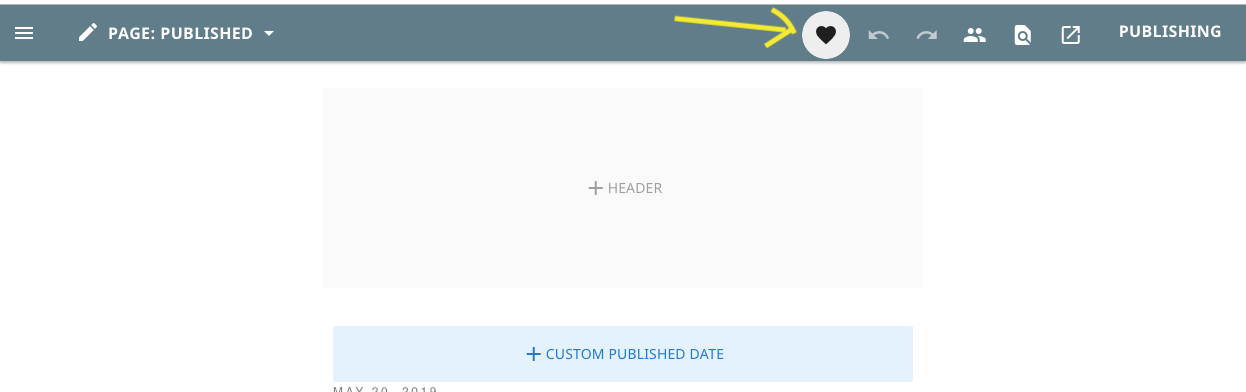
  <UiIconButton id="test" icon="favorite" @click="openNav" />
</template>
 <script>
'use strict';
const UiIconButton = window.kiln.utils.components.UiIconButton;

module.exports = {
  data() {
    return {};
  },
  methods: {
    openNav() {
      this.$store.dispatch('toggleDrawer', 'test');
    }
  },
  components: {
    UiIconButton
  }
};
</script>
This will add a button that looks like this:
Plugin Content
Content for your plugin will appear within the nav content drawer and should be added to the window.kiln.navContent array.
window.kiln.navContent['myPlugin'] = require('./main.vue');
Plugins are most often built as a Vue App that exists inside the Kiln Vue App and can be as simple or as complex as you need. As a part of the Kiln app, it has access to the Vuex Store and all of the data it contains and can both read and write to that data, having access to all Kiln's Vuex Actions.
Plugins can range from something as simple as this
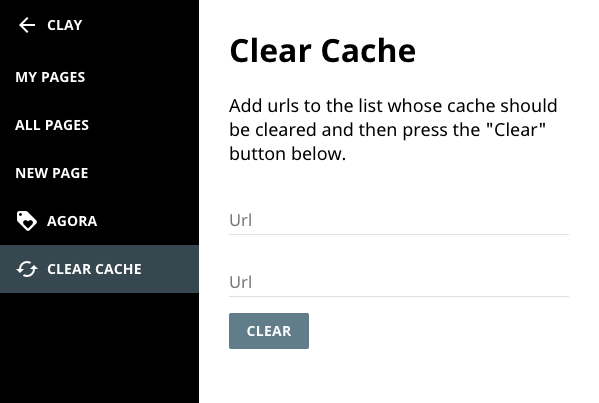
to something as complex as this
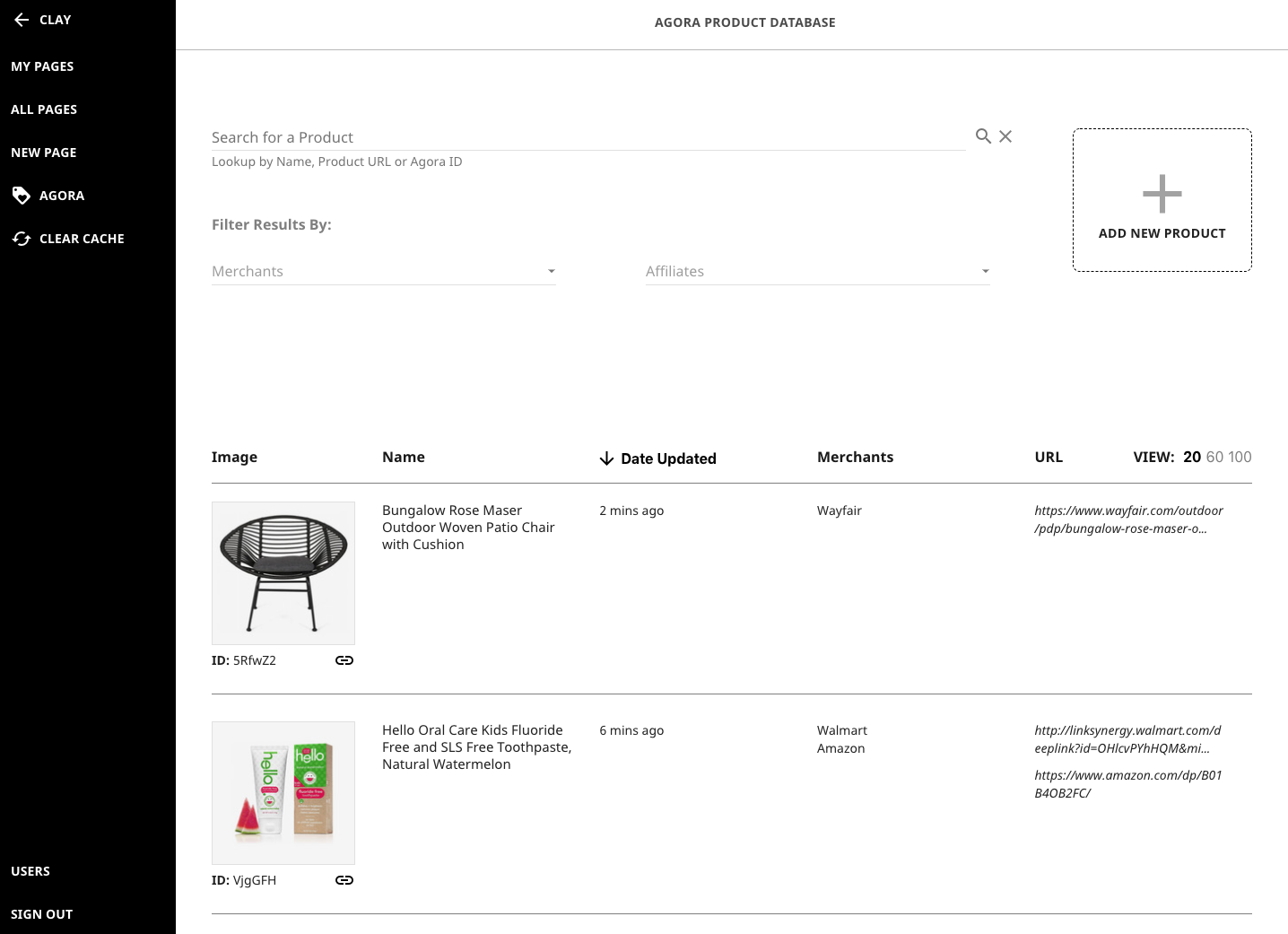
In fact, a plugin can be even simpler than either of those and doesn't actually require anything to be added to the window.kiln.navContent array at all. Instead of opening a content drawer, clicking the nav button could trigger a JavaScript function that makes an API call to perform some backend function, or it could update some piece of data in Kiln's state or any other JavaScript function that you write.
As an example, if the Clear Cache plugin cleared the cache for every page rather than the entered urls, then you could just write a function to clear every cache and call that function upon clicking the Clear Cache button rather than requiring further user input.
See Also: